See it working
Try it without equipment
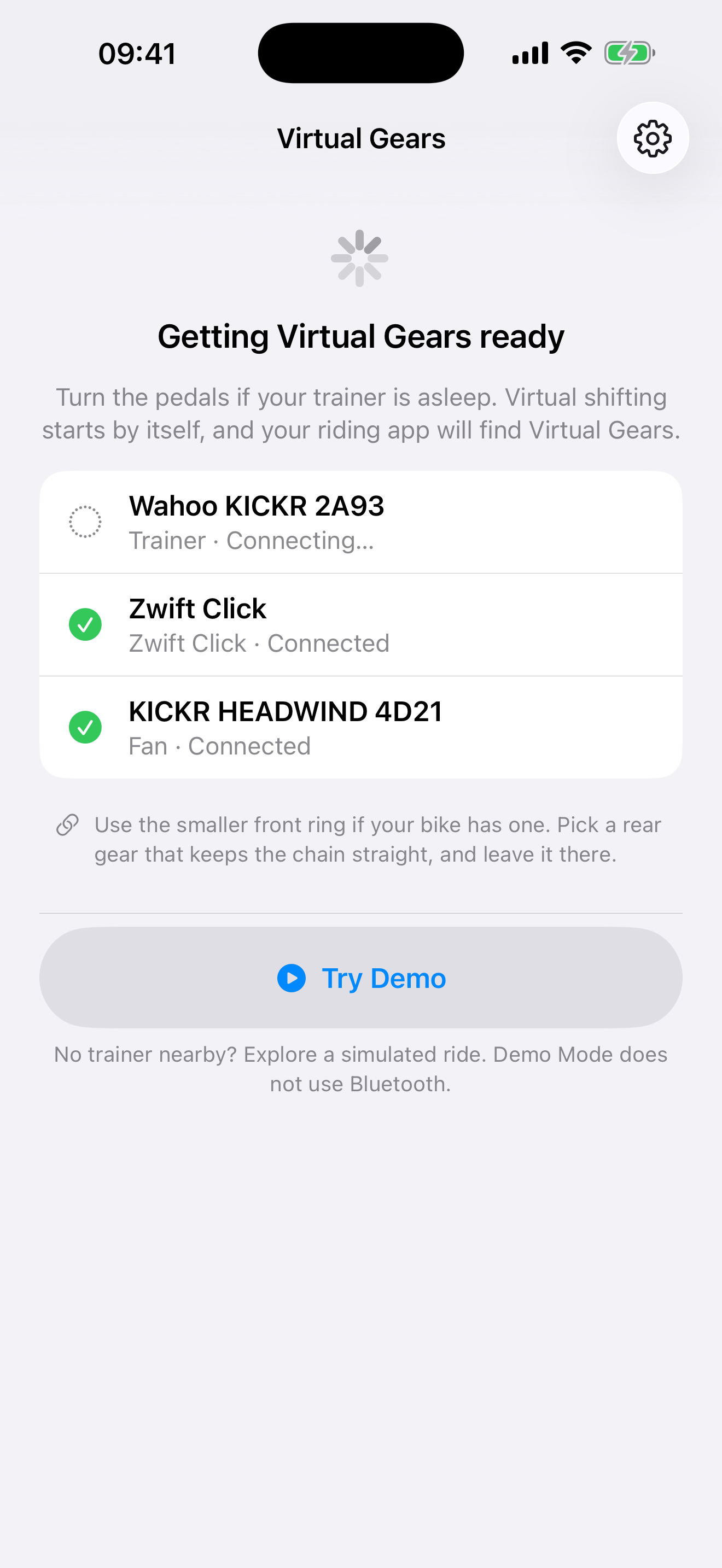
Open Virtual Gears and tap Try Demo while it is looking for a trainer. The blue notice and every equipment status make clear that the ride is simulated and that no trainer is connected.
In Demo Mode you can:
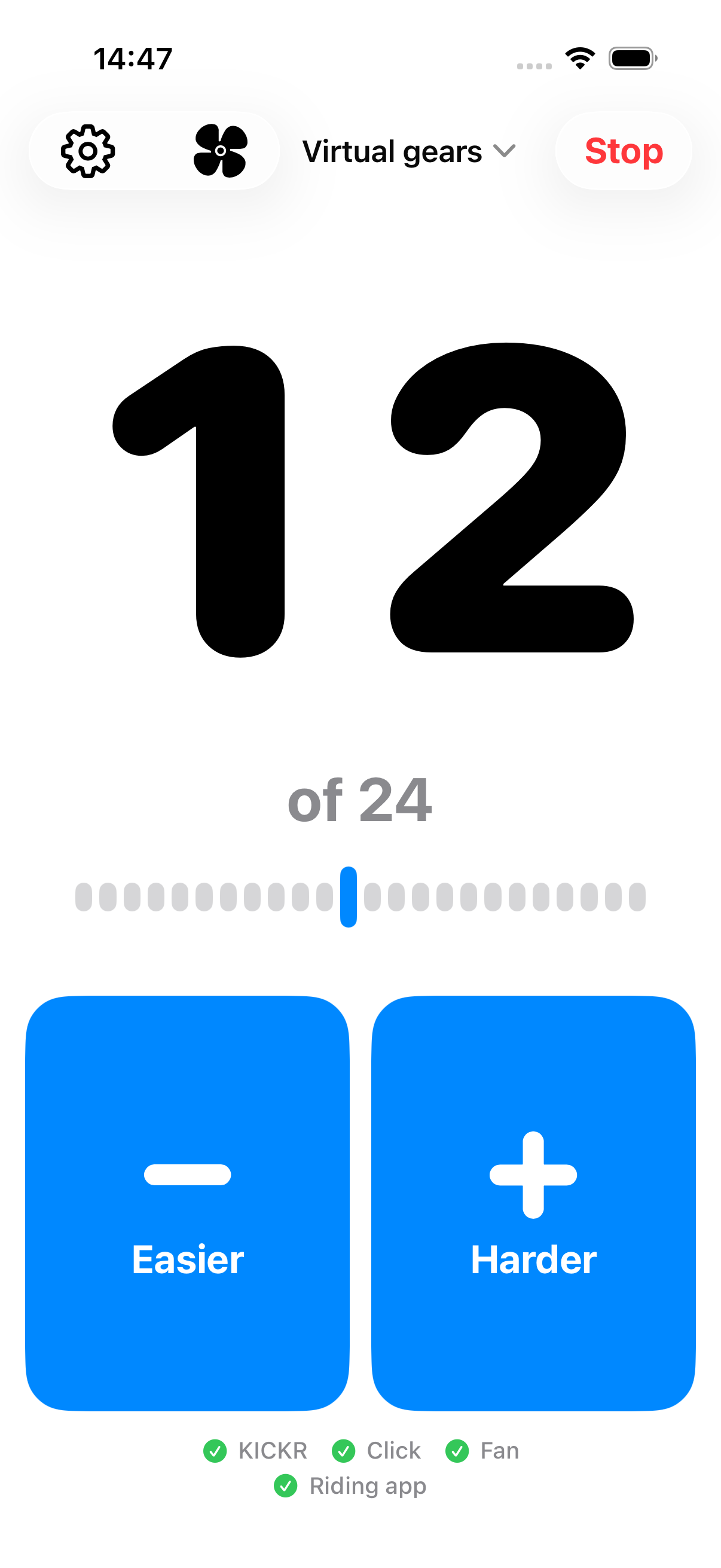
- shift easier and harder with the same large controls used on a real ride;
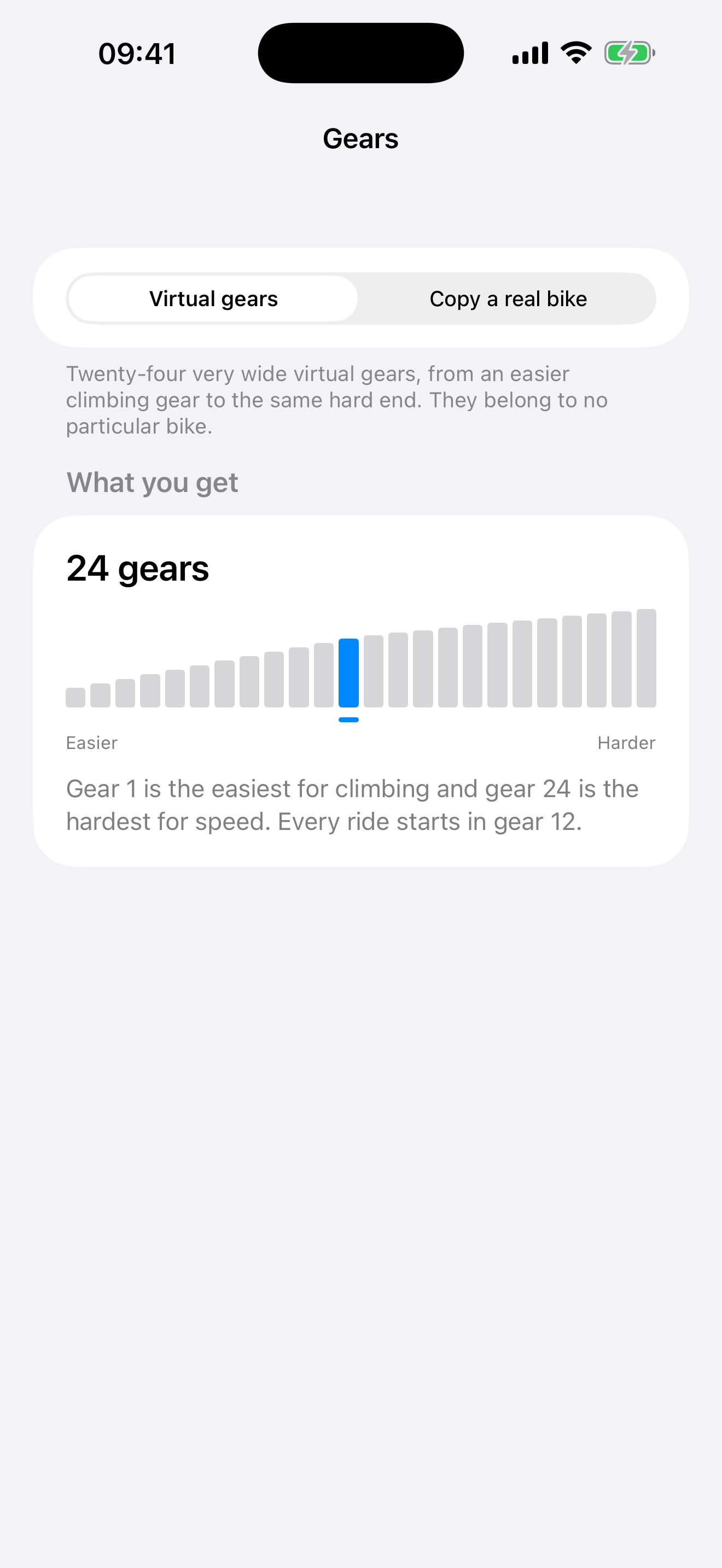
- see the current gear move along the full gear ladder;
- watch the wheel size the trainer would be set to, and the exact command bytes that carry it, change with every shift;
- see a gear appear only after the simulated trainer confirms it, which is the rule a real ride follows;
- watch a simulated riding app work its way over hills on its own channel, without ever disturbing the gears;
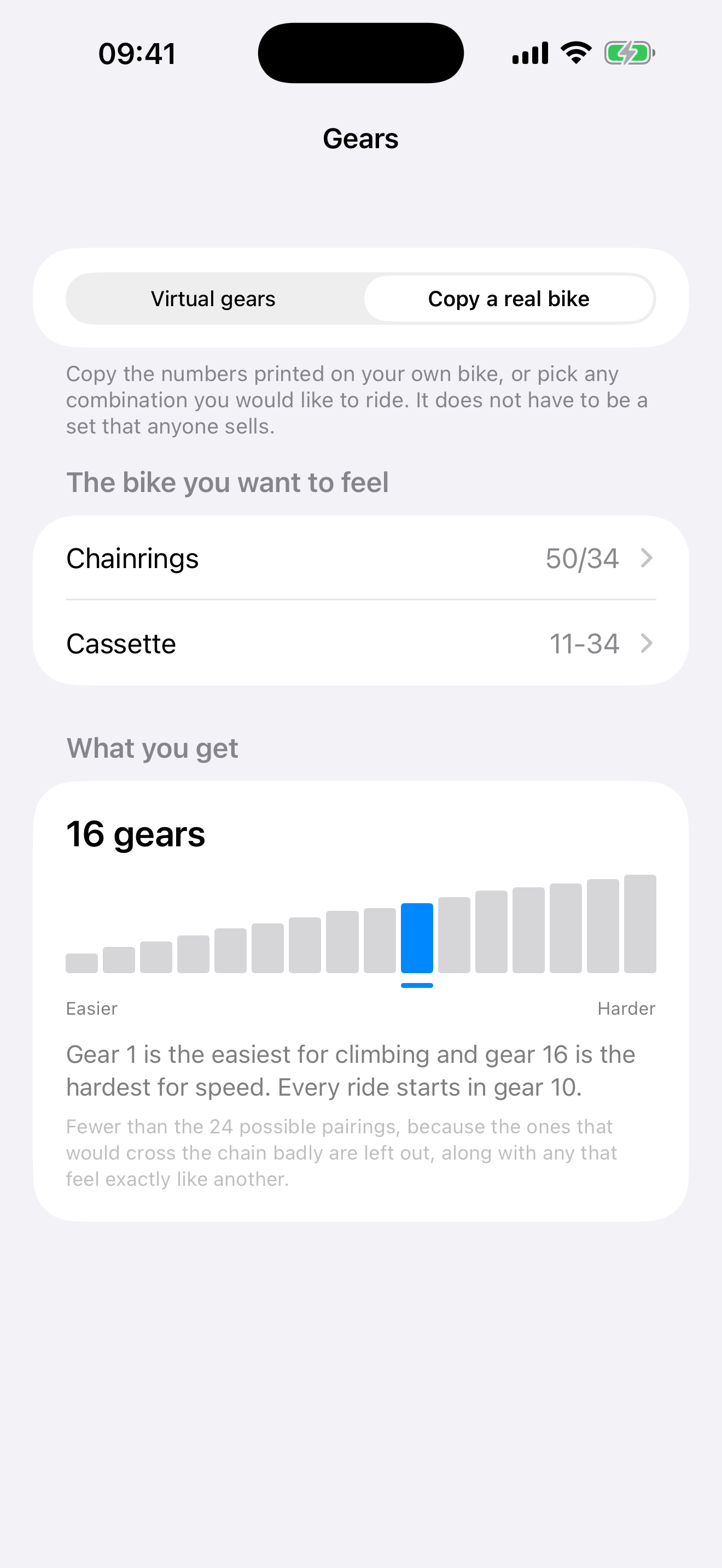
- switch between the 24 virtual gears and a real-bike drivetrain;
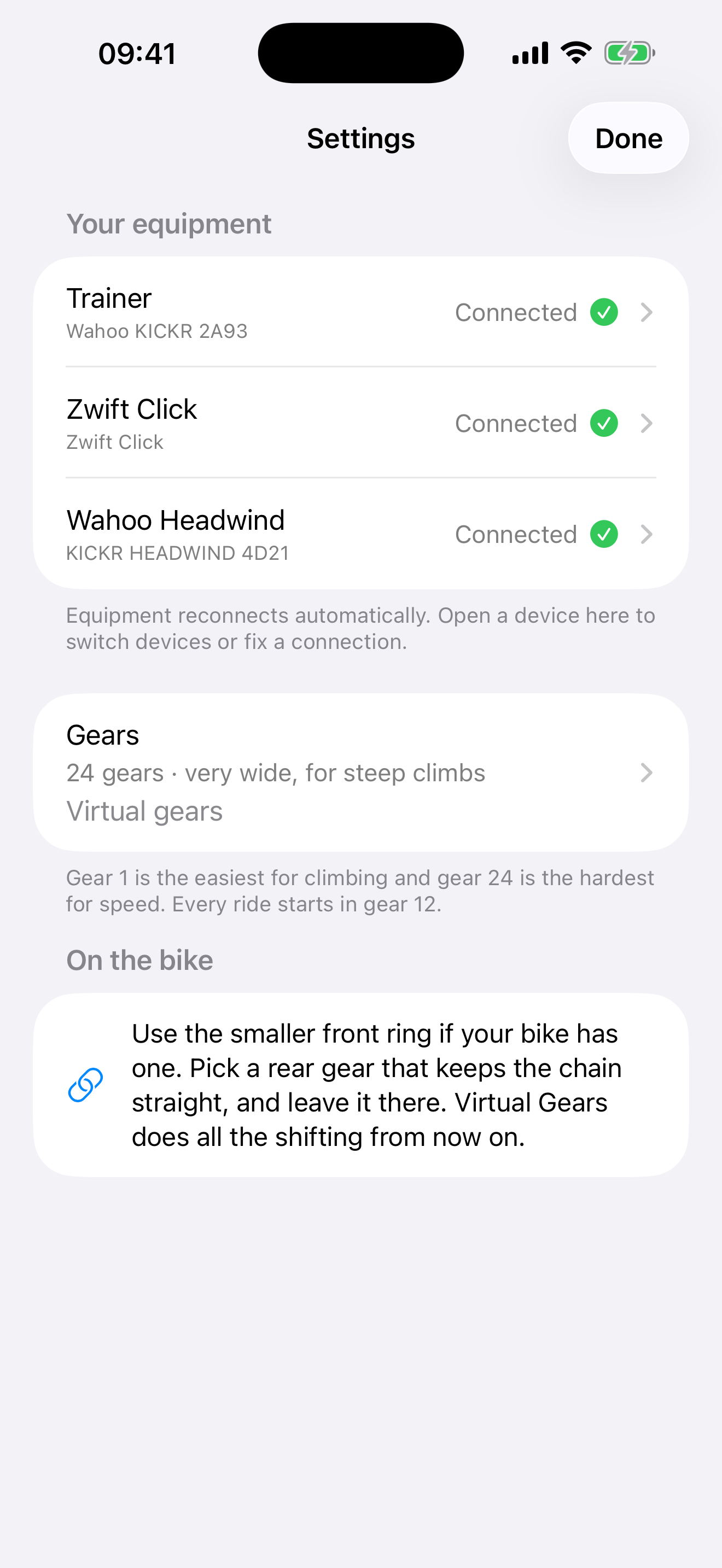
- open Settings and inspect the simulated trainer, Click, Headwind and riding-app status; and
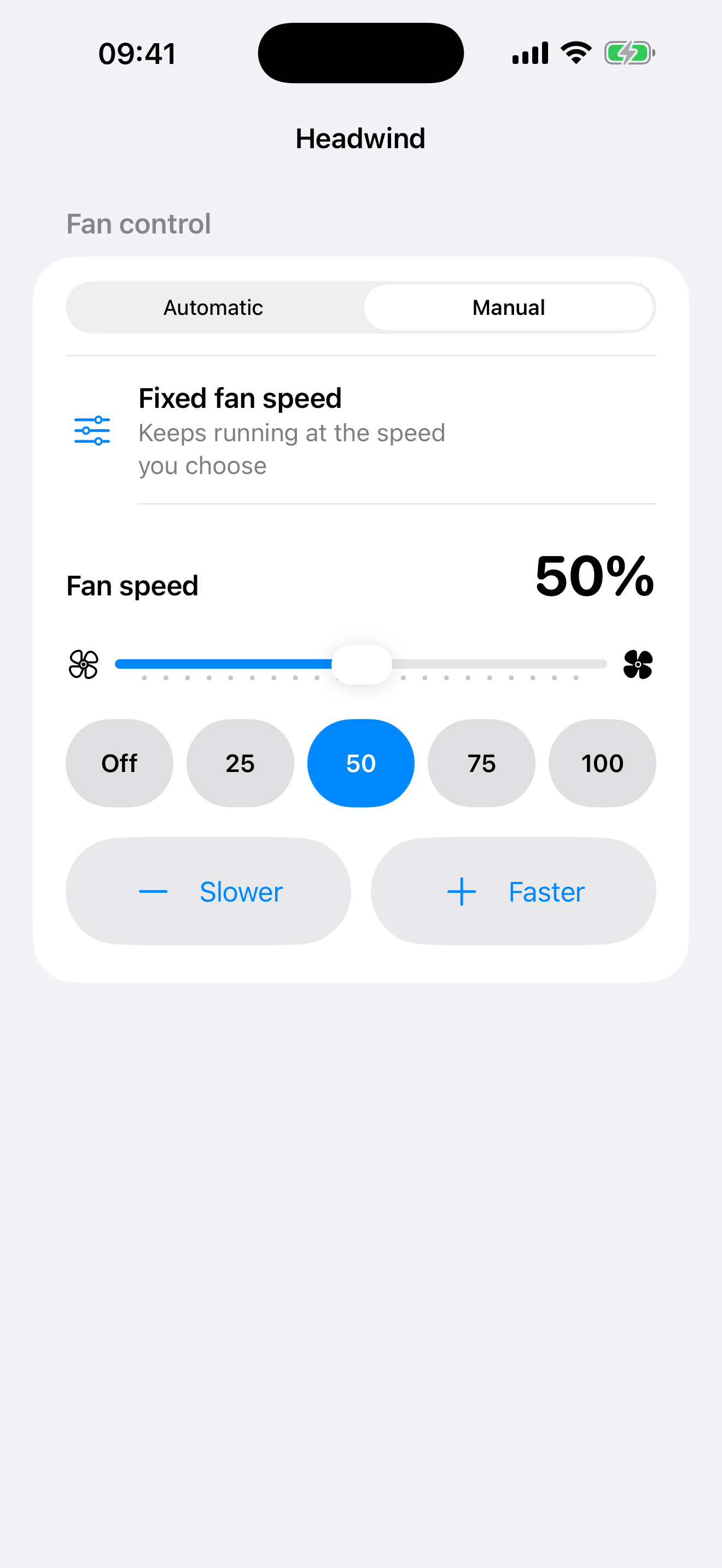
- try simulated Headwind Automatic and Manual controls.
The wheel sizes and command bytes are not illustrations. Demo Mode drives the
same ConfirmedGearEngine a real ride uses, and the stand-in trainer answers in
the KICKR's own wire format, so the numbers on screen are the ones that would go
out over Bluetooth. Only the radio is missing.
Tap Exit Demo to return to normal trainer discovery. Demo choices stay only inside that demo and are discarded when it closes. Demo Mode does not scan, advertise, connect or send Bluetooth commands.
Simulation is not hardware evidence
Demo Mode shows the product screens and local gear behavior. It does not prove that a trainer, Click, Headwind or riding app is physically compatible. The compatibility claims on this site remain based on the recorded hardware evidence in the repository.
What a ride looks like